


'/%3E%3Cpath%20fill='%23b2b2b2'%20d='M241%20382q0%2016%2017%2026%2017%2011%2042%2011t42-11q16-11%2017-26V269H241'/%3E%3Cpath%20fill='%239f7e00'%20d='M241%20379q0%2014%208%2023%209%209%2021%209%2014%200%2021-9%209-9%209-23V269h-59'/%3E%3Cpath%20d='M241%20339v-70h59v110q0%2014-9%2023l-6%205v-68h-15v72q-8%200-14-4v-68zm59%2040c0%2022%2015%2032%2029%2032%2021%200%2030-18%2030-32v-40h-59'/%3E%3Cpath%20fill='%239f7e00'%20d='M266%20277v5h2v12h-3v-5h2v-5h-9v5h2v5h-4v9h3v18h-5v10h34v-10h-5v-18h3v-9h-4v-5h2v-5h-9v5h2v5h-3v-12h2v-5zm42%20101q0%2010%206%2017%206%206%2015%207%2010-1%2016-7%206-7%206-17v-29h-43'/%3E%3Ccircle%20fill='%230044ad'%20cx='329.5'%20cy='372'%20r='6'/%3E%3Cellipse%20fill='%230044ad'%20cx='300'%20cy='340'%20rx='16'%20ry='21'/%3E%3C/svg%3E)


Windows environments provide a variety of approaches for monitoring both on the OS and the application level. The article will cover utilizing Zabbix agent on Windows to collect and discover OS and application level metrics from a variety of Windows-supported sources.
Deploying Zabbix agent on Windows
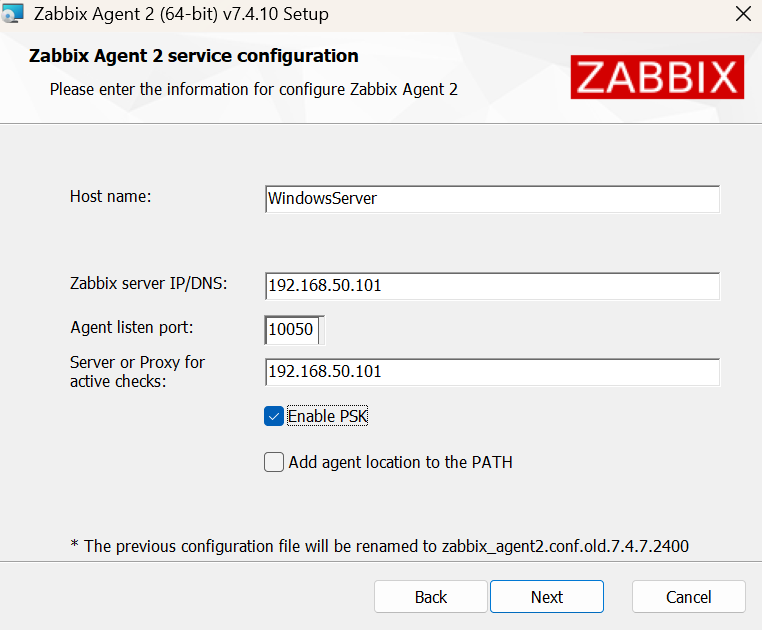
Zabbix agent can be deployed either by downloading the official MSI packages or by installing the Zabbix agent from binary files. Both Zabbix agent and Zabbix agent 2 are available to install via these methods. Generally speaking, Zabbix agent 2 is a more feature-rich version than the regular Zabbix agent. On the other hand, if you do encounter any compatibility issues with Zabbix agent 2 – the classic Zabbix agent can be used instead.
During the MSI install the following Zabbix agent configuration parameters can be defined:
- Zabbix server address
- Zabbix agent PSK encryption settings
- Direction of the connection (Active/Passive checks)
- Optional install of Zabbix sender and Zabbix get tools
Installing Zabbix agent from binary file is also a fast and simple process:
- Download the Zabbix agent binary files
- Adjust the Zabbix agent configuration file to fit your requirements
- Run the agent binary file with the —install command
- Use the –config command to point the Zabbix agent at the agent configuration file
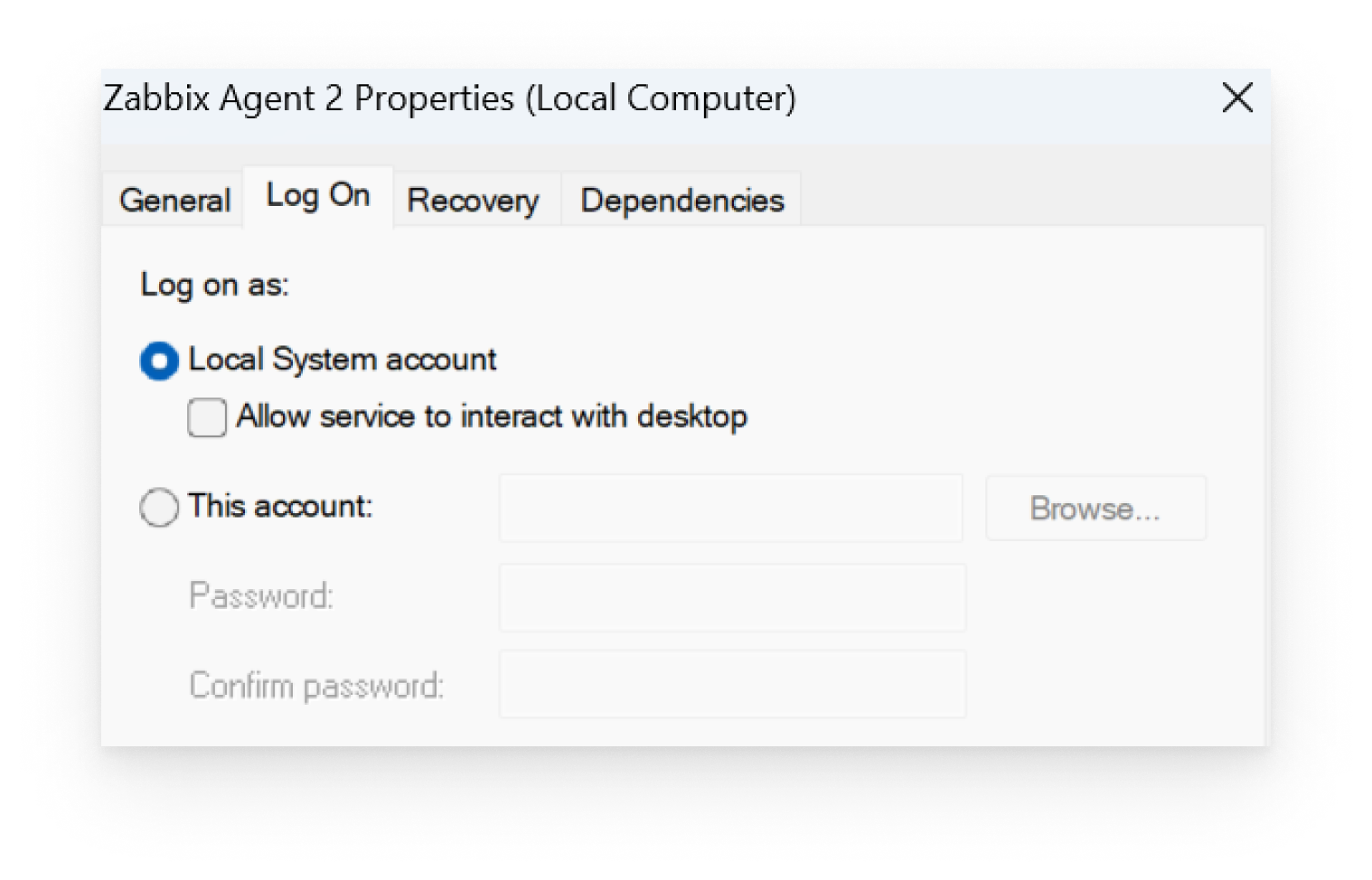
As a result of both approaches, Zabbix agent will be installed and run as a Windows service. By default the agent runs under the Local System account (Having unrestricted access to local system resources) – this can and should be adjusted based on your organizational security policies.
Additional Zabbix agent 2 plugins
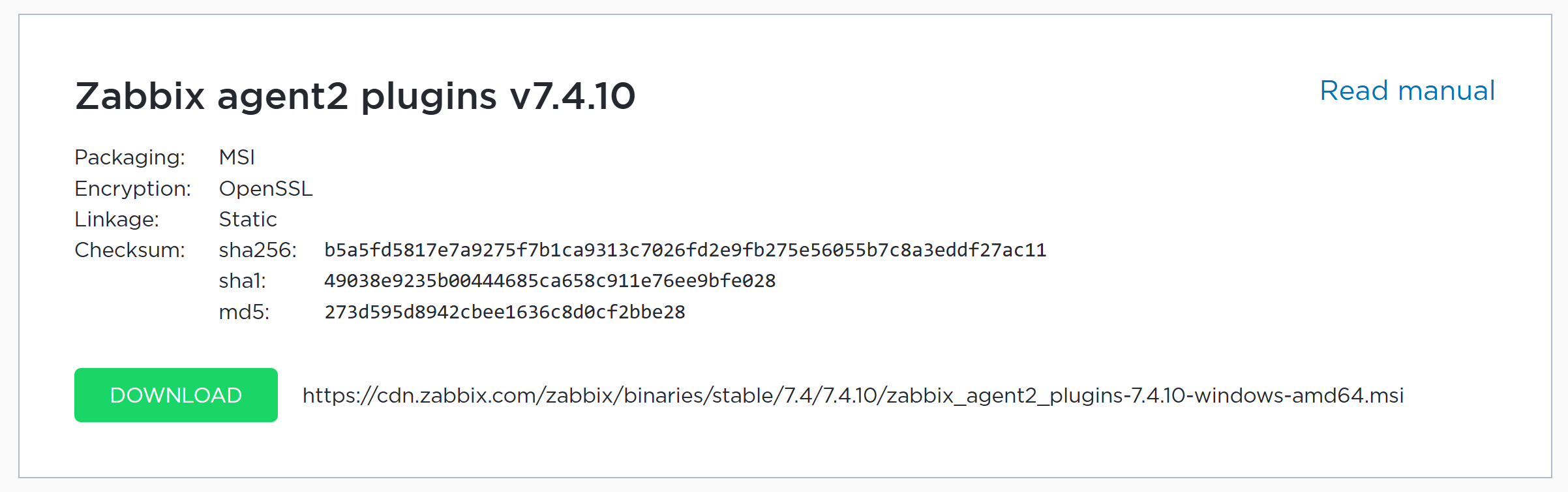
Multiple Zabbix agent 2 plugins are provided in a separate package, which can also be installed via the MSI installer. The following plugins have to be installed via the dedicated Zabbix agent 2 plugins package:
- Ember plus
- MongoDB
- MSSQL
- NVIDIA GPU
- PostgreSQL
Configuring a Windows host in Zabbix
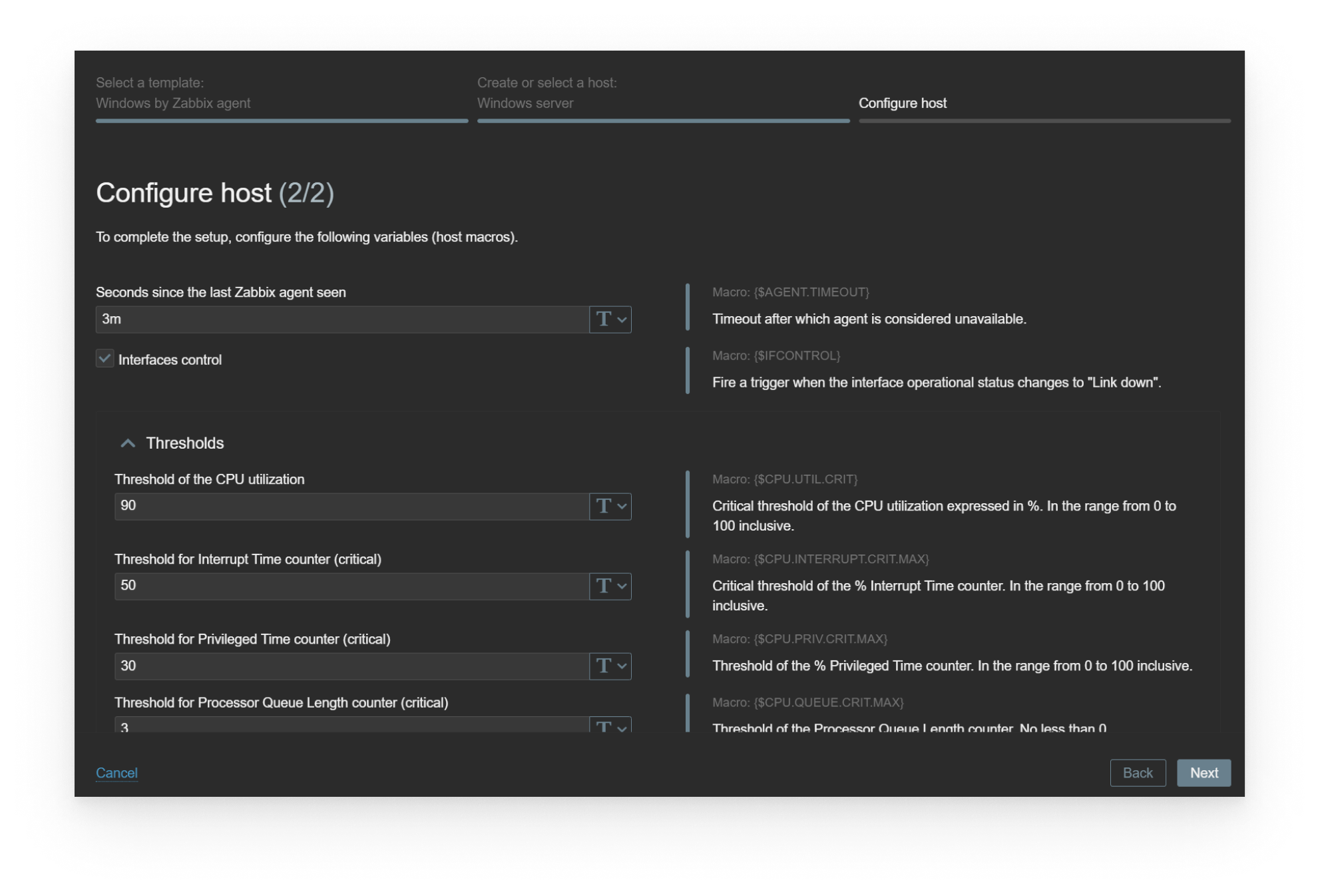
The quickest way to get started once the agent is deployed and configured, is to create a Windows host in Zabbix and use one of the official Zabbix templates on this host. The host can be either created manually or by using the Host Wizard for a more guided experience (Host Wizard is available starting from Zabbix 7.4).
After you have assigned the template, adjust the macros used for trigger thresholds and low-level discovery filters on the host level, so they fit your individual requirements. (Once again – the Host Wizard will guide you through this process during the host creation. Otherwise – open the Macros section in the host configuration and adjust them manually)
Official Zabbix templates for Windows environments
Zabbix provides a variety of templates for Windows OS and application monitoring:
- Windows by Zabbix agent
- MSSQL by Zabbix agent 2
- Microsoft SharePoint by HTTP
- Microsoft Exchange Server 2016 by Zabbix agent
- IIS by Zabbix agent
The templates contain static items, triggers, graphs and dashboards as well as a variety of low-level discovery rules to discover resources such as:
- Network interfaces
- Physical disks
- Windows services
- MSSQL Databases
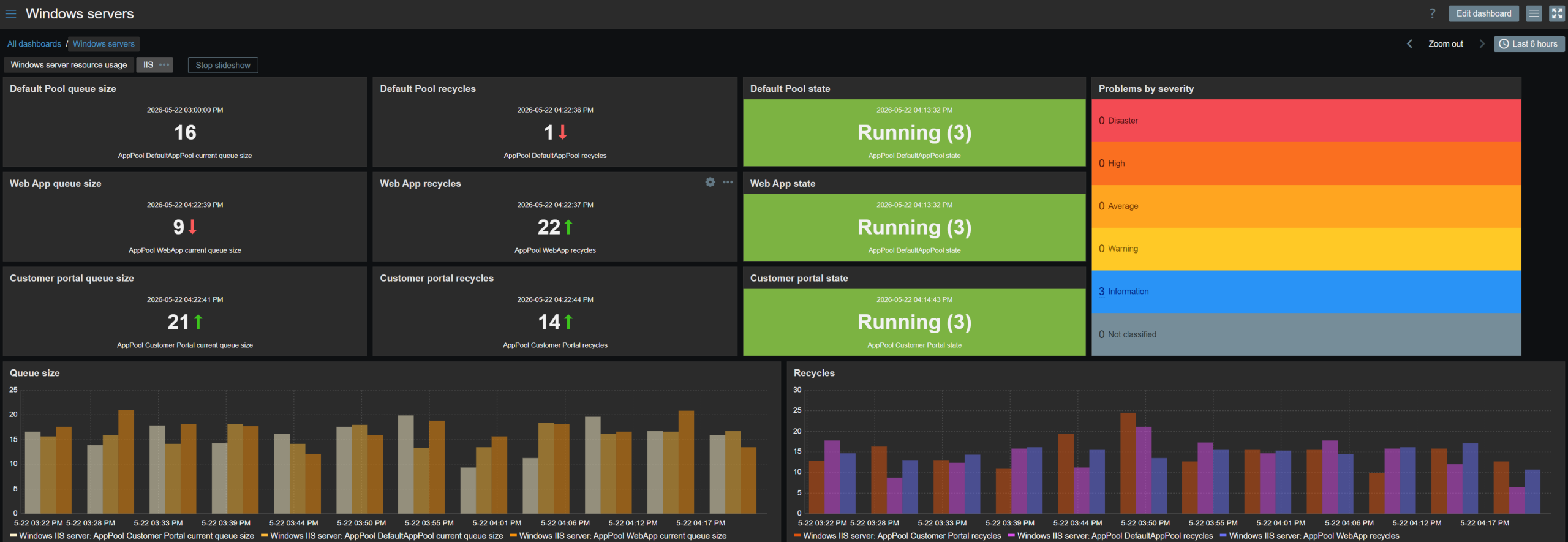
- IIS Application pools
- SharePoint directories
- Exchange services
- And much more!
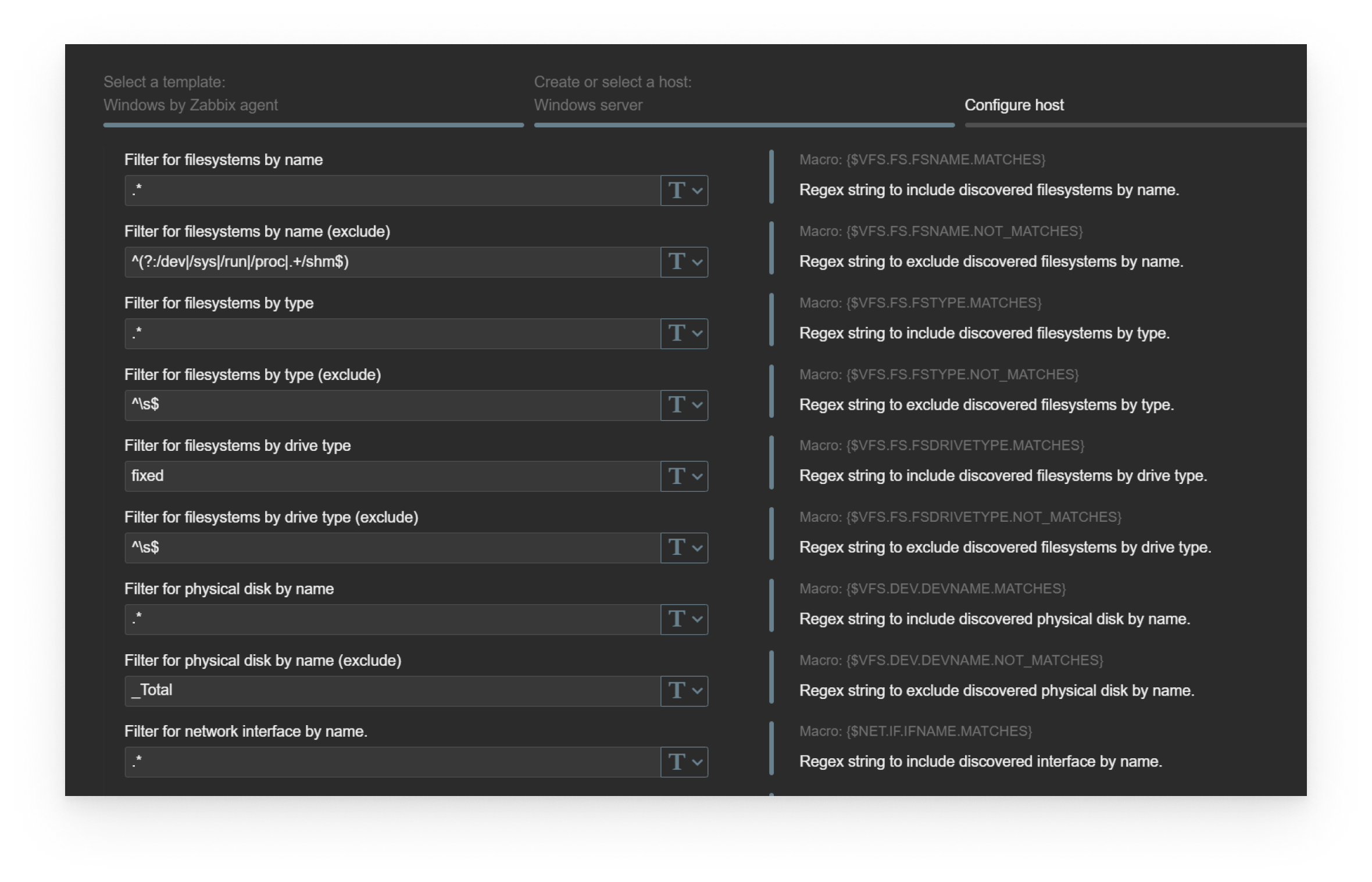
Depending on the application, additional configuration might be required on the application side. The required configuration steps are documented in the corresponding integration pages on our website.
Performance counters and WMI queries
Performance counters are used both in our official templates and are also a common way how existing templates can be extended and templates for other Windows applications can be built.
Performance counter monitoring is done by using a Zabbix agent item key – perf_counter[]
With this approach you can configure your Zabbix agent to collect any supported performance counter value. For example, here’s a performance counter item key for monitoring IIS application pool state:
perf_counter[“\APP_POOL_WAS(Customer Portal)\Current Application Pool State”]
The item key can also use performance counter indexes (numeric performance counter representations).
To ensure that performance counter items remain portable across different Windows hosts with different Windows locales, Zabbix provides English performance counter item key – perf_counter_en[].
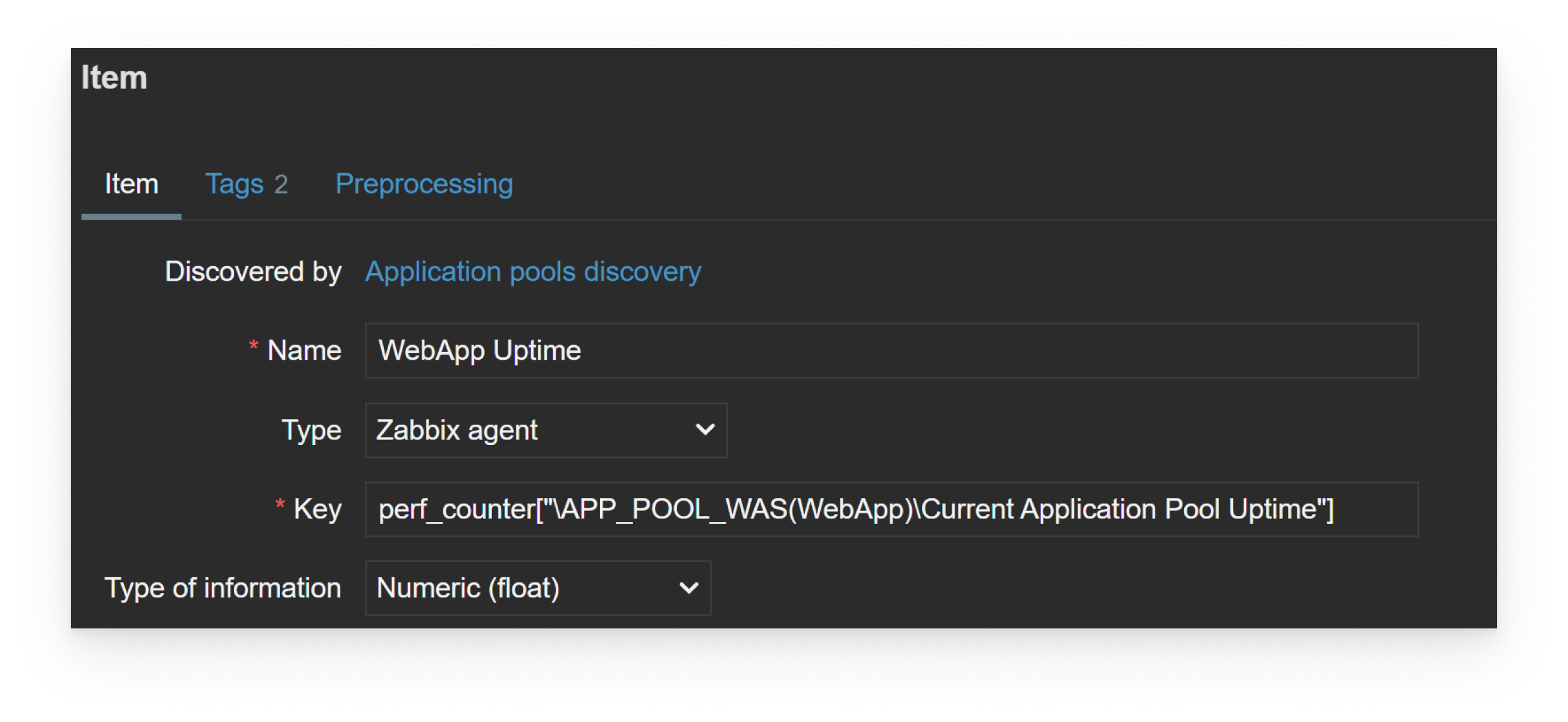
In addition to performance counters, Zabbix agent can also execute WMI (Windows Management Instrumentation) queries.
Two keys can be used to collect WMI data:
- get[<namespace>,<query>] – return the first selected object
- getall[<namespace>,<query>] – return the whole response in JSON (Can be used for low-level discovery)
For example – return the status of the first physical disk: wmi.get[root\cimv2,select status from Win32_DiskDrive where Name like ‘%PHYSICALDRIVE0%’]
Windows log monitoring
Zabbix agent provides 2 item keys specifically for Windows event log monitoring:
- Collect the event log entry matching the item key parameters: eventlog[name,<regexp>,<severity>,<source>,<eventid>,<maxlines>,<mode>]
- Collect the number of matching event log entries ofr a time period: count[name,<regexp>,<severity>,<source>,<eventid>,<maxproclines>,<mode>]
The event log entries can be filtered by log name, log contents (via a regular expression), log severity, source, and event ID.
For example, we might want to react only to log entries in the System log with entry severity matching Warning or Error.
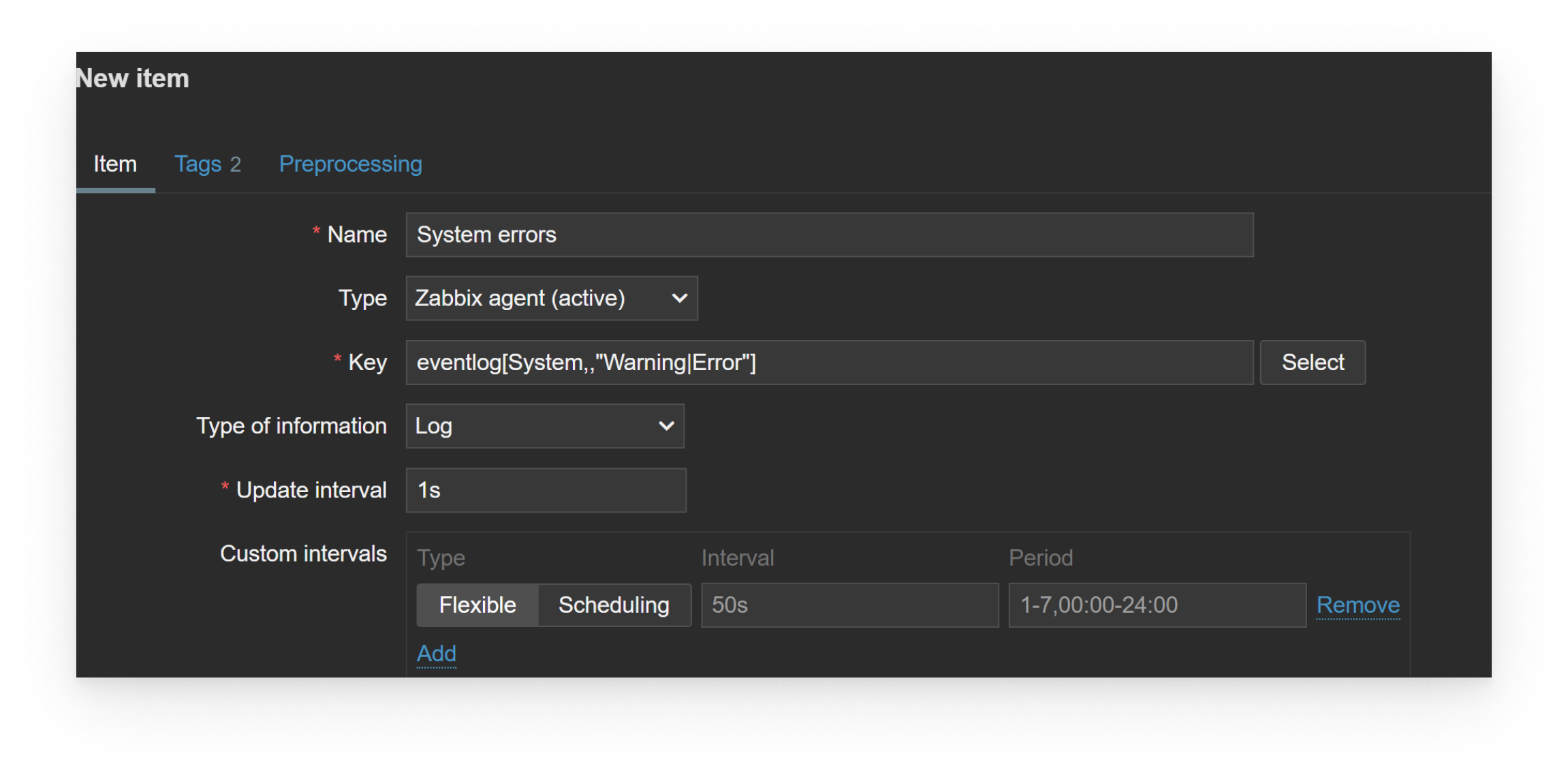
Here the regular log monitoring guidelines apply – it’s supported only by Zabbix agent active checks with the recommended update interval of 1 second (except for eventlog.count) and have a dedicated Type of information with a unique set of configuration settings.
Extending Zabbix agent on Windows
In addition to custom performance counters and WMI queries, Zabbix agent installations on Windows installations can be extended in standard Zabbix ways:
- Defining Zabbix agent User parameters with custom item keys
- Using Zabbix agent system.run item to run custom scripts and commands
Since Zabbix agent is language-agnostic, we can utilize Windows-specific PowerShell scripts or commands to collect custom data:
For example, we can use PowerShell to get a list of pending Windows updates:
UserParameter=GetUpdates,powershell Get-WindowsUpdate
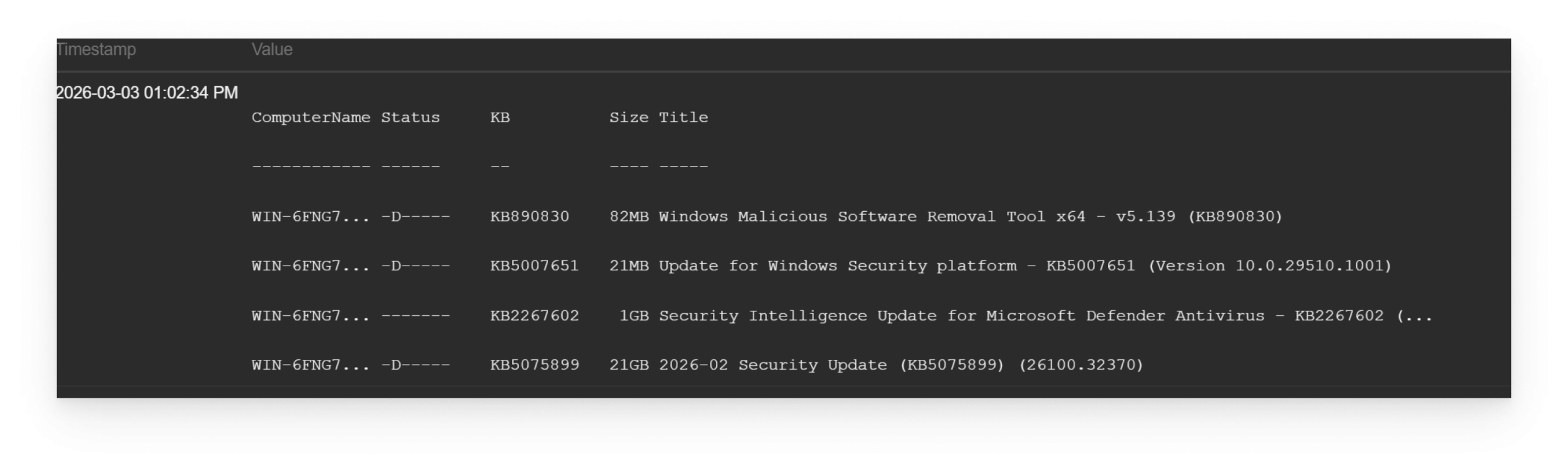
Native Zabbix features such as preprocessing and dependent items can be applied to the collected data to transform or extract the required values or utilize low-level discovery features to automatically create items and triggers based on the ouput of the script.
Finally, the collected data can be used to create different views of your Windows server resource usage, application states and any other collected metrics.

 Prev Post


At the “Windows log monitoring” section you wrote:
It looks like a misprint. Probably, there should be: