In this blog post, you will learn how to add a simple container remote control capability to Zabbix in order to start, stop, or restart containers from within the discovered host.
You might be wondering, why spend the effort to create a host for each template? Well, that’s because we define a manual script to control the container from within the Zabbix frontend. That’s neat, right? And why stop there? We can also implement a trigger action that automatically restarts the container if it crashes for any reason.
Zabbix server configuration changes
First, we will require global script execution in your Zabbix server configuration:
# nano /etc/zabbix/zabbix_server.conf
EnableGlobalScripts=1
# systemctl restart zabbix-server
Script configuration in frontend
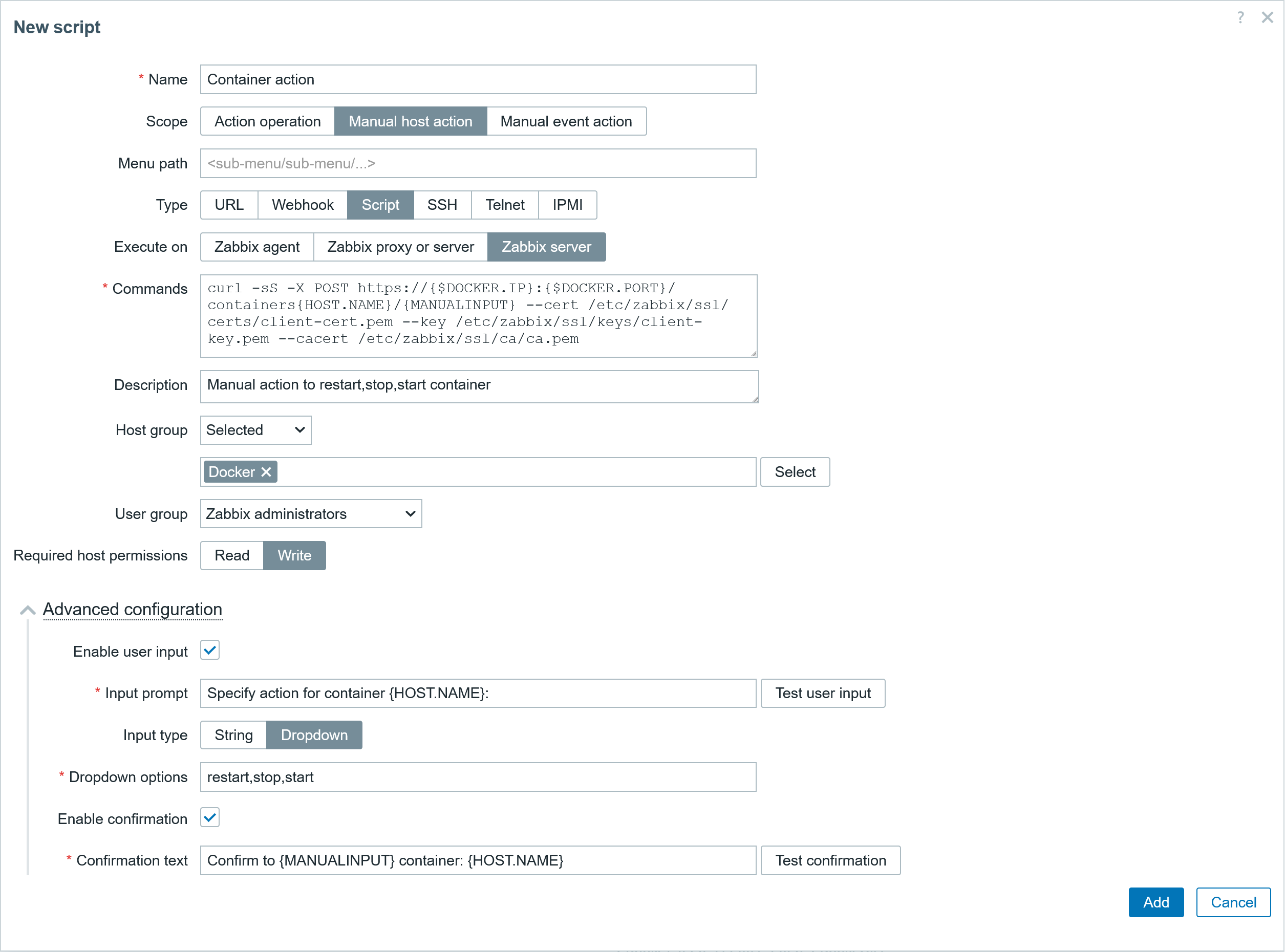
We can create a script in the section Alerts > Scripts. In the script, fill out the specified parameters shown below – the scope, type, and command. Then specify to which hosts this command will apply, as well as the user group that will be able to execute this. This script will take advantage of the user macros and built-in macros to fill the required info in the command to make a correct post request.
● Script
▪ Name: Container action
▪ Scope : Manual host action
▪ Type: Script
▪ Execute on: Zabbix server
▪ Commands: curl -sS -X POST https://{$DOCKER.IP}:{$DOCKER.PORT}/containers{HOST.NAME}/{MANUALINPUT} --cert /etc/zabbix/ssl/certs/client-cert.pem --key /etc/zabbix/ssl/keys/client-key.pem --cacert /etc/zabbix/ssl/ca/ca.pem
▪ Description: Manual action to restart,stop,start container
▪ Host group: Selected: Docker
▪ User group: Zabbix administrators
▪ Req host perm: Write

● Advanced configuration
▪ Enable user input Check
▪ Input prompt Specify action for container {HOST.NAME}:
▪ Input type: Dropdown
▪ Dropdown options: restart,stop,start
▪ Enable Confirmation: Check
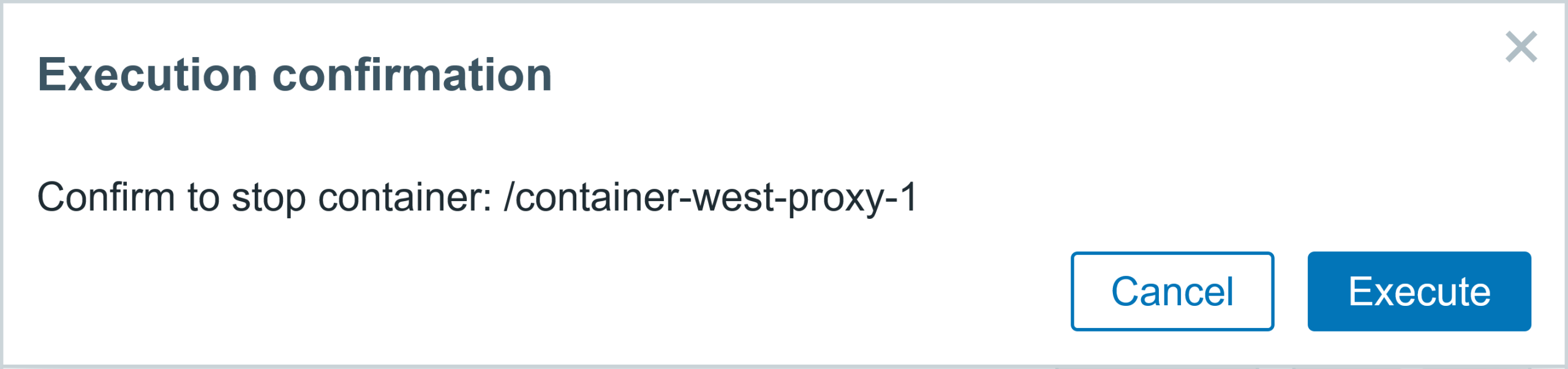
▪ Confirmation text: Confirm to {MANUALINPUT} container: {HOST.NAME}
Manual host script execution
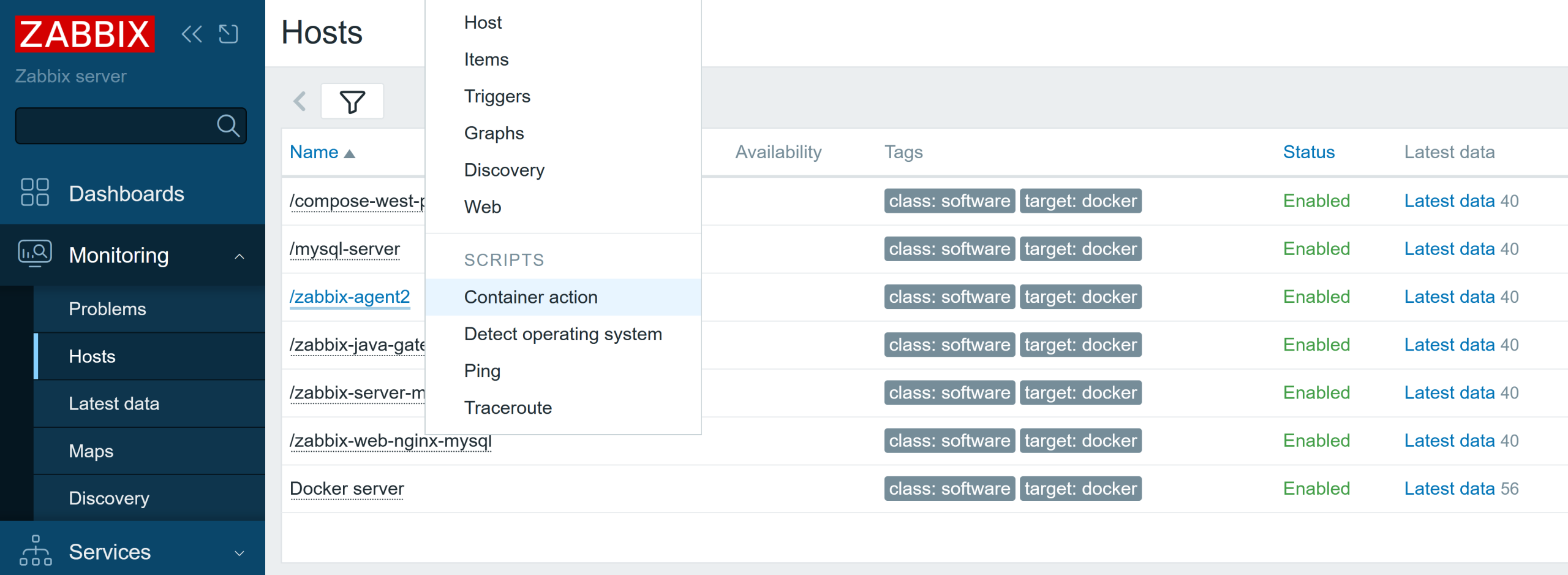
We can go the Menu section Monitoring > Hosts, select the host, and click on it. In the menu, you will have an additional script available for the Docker hosts group Container action. This manual action is also available in some other frontend sections.
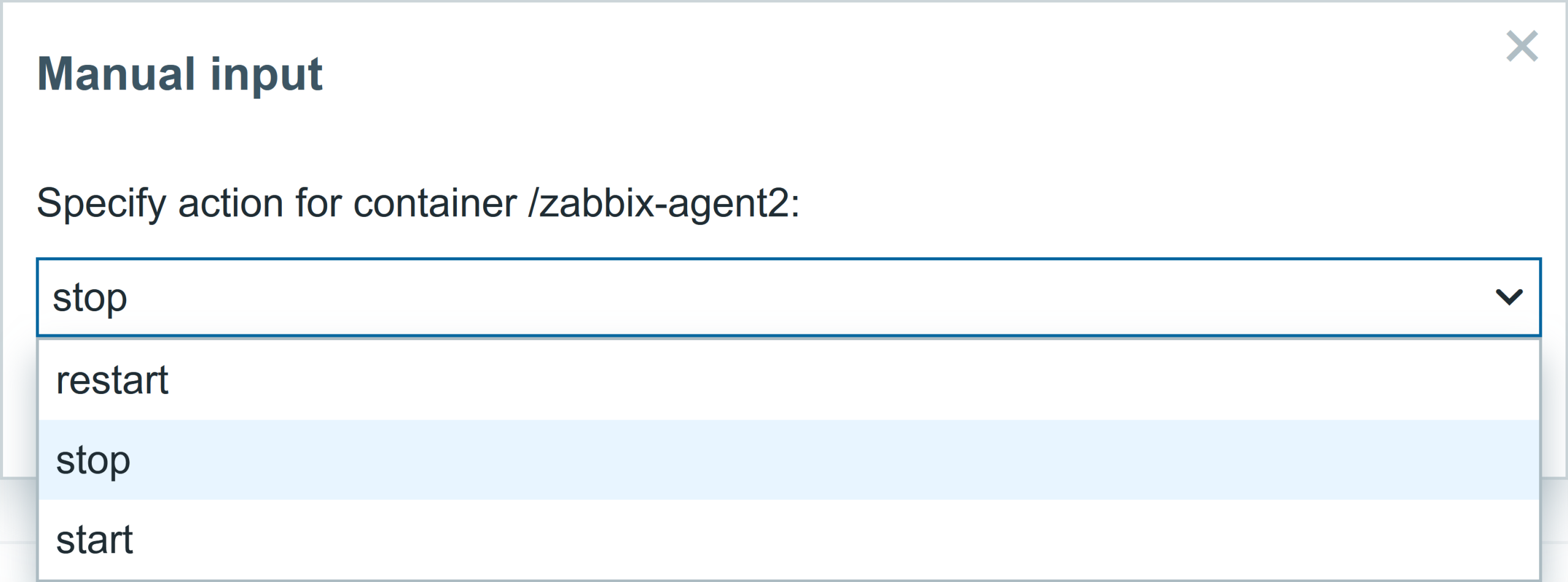
Once you click on the Container action, you will have several options available. You can start, restart, or stop the container.
You will have a confirmation window asking if this is the right action you want to perform.
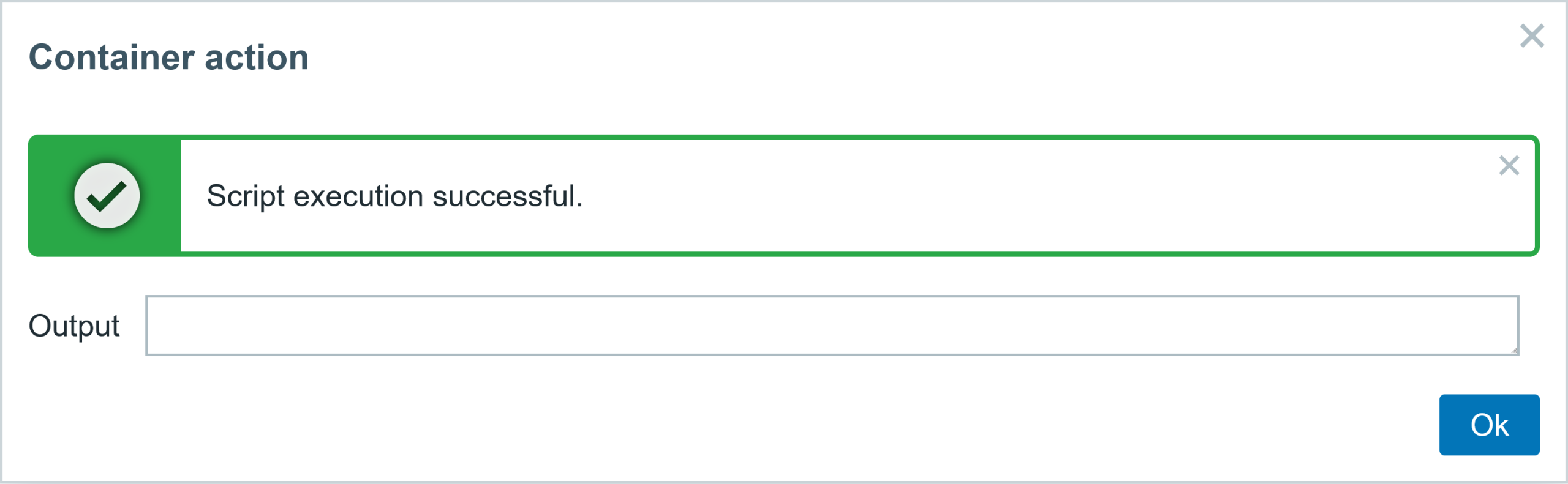
The status can also be checked in the host’s latest data menu, once the metric is collected (1 minute for the master item). The item Container /zabbix-agent2: Running shows that this container is not running, and another item displays the exit code 0, which means the process stopped normally with no issue whatsoever.

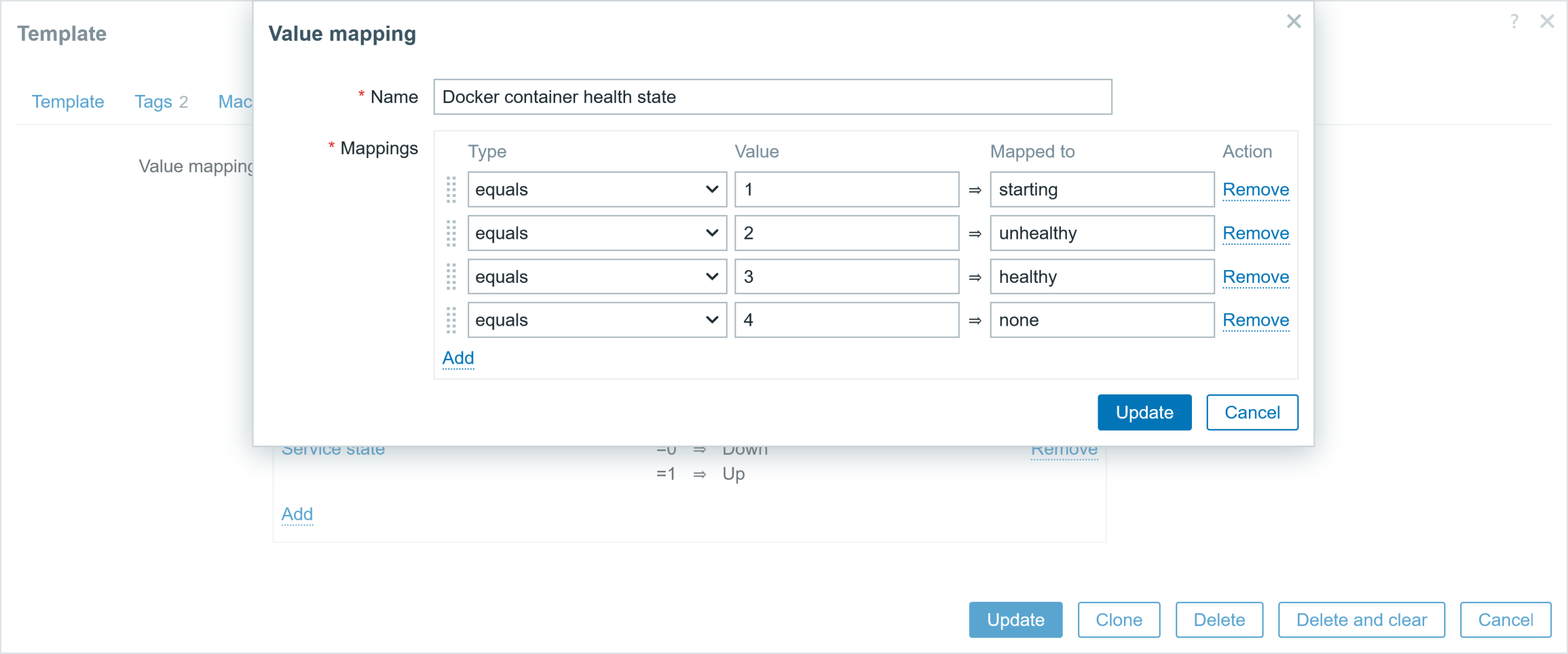
Some items report the status in numerical format, e.g., 0 , 1 , 2, and so on. To make it human-readable, we use value maps, which display the value in a meaningful, human-friendly way. The screenshot below shows the value map for container health status. So, instead of looking at value 3 for container health (which is meaningless for us and will require reading the documentation) we will be shown value healthy (3).
Automating the container crash recovery
What if your container crashes for some reason? Well, you will get a problem event, which you can use to receive notifications about issues with containers. You can also automate the container recovery process. For example, create a trigger action that will restart the container 3 times with an interval of 2 minutes.
If it does not resolve the issue, only then send a message to the admin. There is no reason to repeatedly restart the service until the end of time – if a few attempts did not work, most likely it will require human intervention to solve the issue.
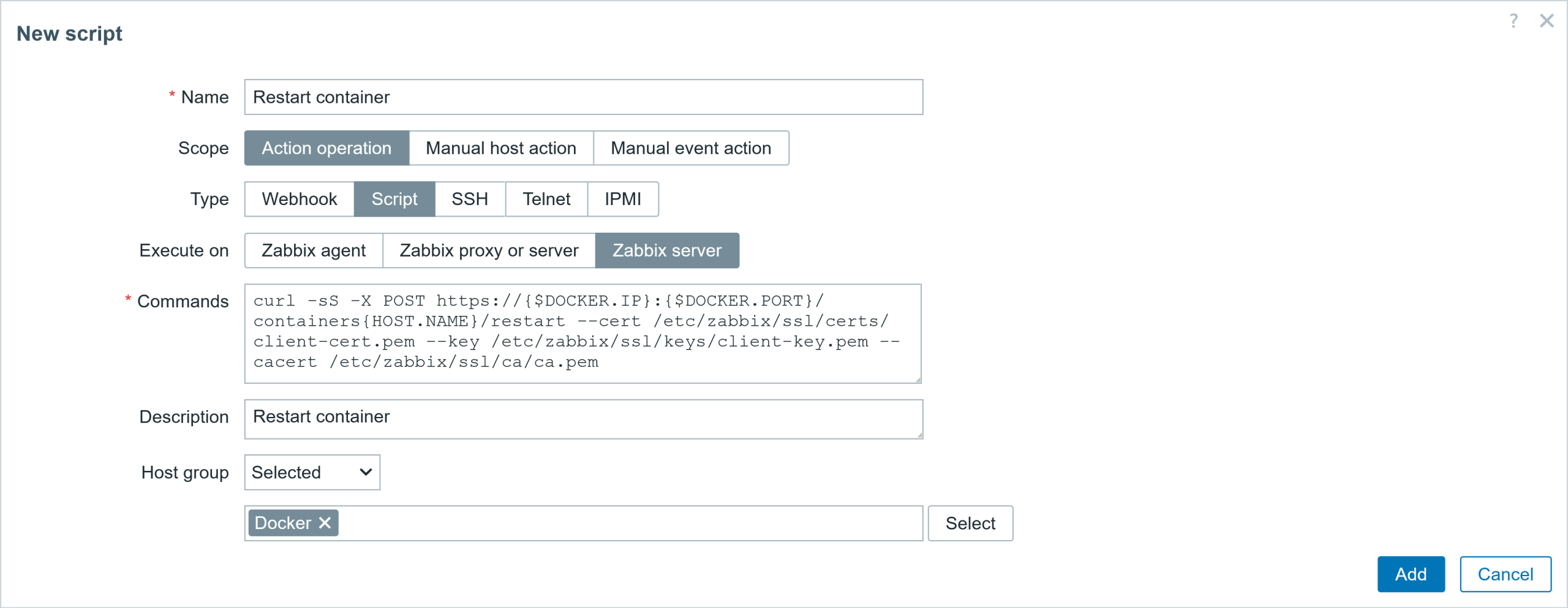
So here are the script parameters for the action operation:
● Script
▪ Name: Restart container
▪ Scope: Action operation
▪ Type: Script
▪ Execute on: Zabbix server
▪ Commands: curl -sS -X POST https://{$DOCKER.IP}:{$DOCKER.PORT}/containers{HOST.NAME}/restart --cert /etc/zabbix/ssl/certs/client-cert.pem --key /etc/zabbix/ssl/keys/client-key.pem --cacert /etc/zabbix/ssl/ca/ca.pem
▪ Description: Restart container
▪ Host group: Selected: Docker
Now we have to define a trigger action in order to make use of this script and send a notification to admin if that fails.
Let’s create a new trigger action:
● Action tab
▪ Name: Automatic container restart
▪ Type of calc: And (A and B)
▪ condition: Host group equals Docker
▪ condition: Event name contains Container has been stopped with error code
▪ Enabled: Check

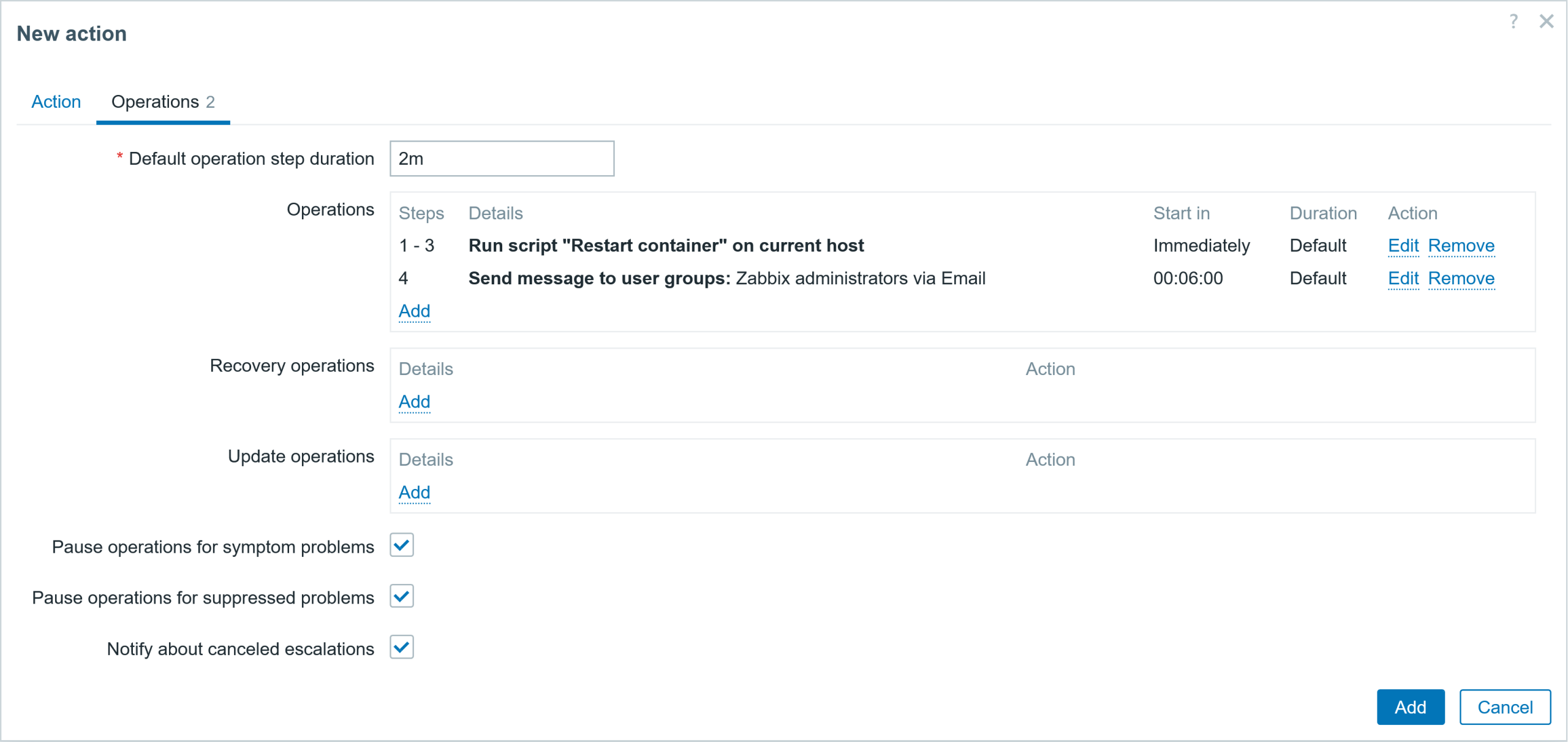
● Operations tab
▪ Default operation step duration: 2m

Add operation
▪ Operation: Current host: Check
▪ Steps: 1 -3
Add operation
▪ Operation: Send message
▪ Steps: 4 – 4
▪ Custom message: Check
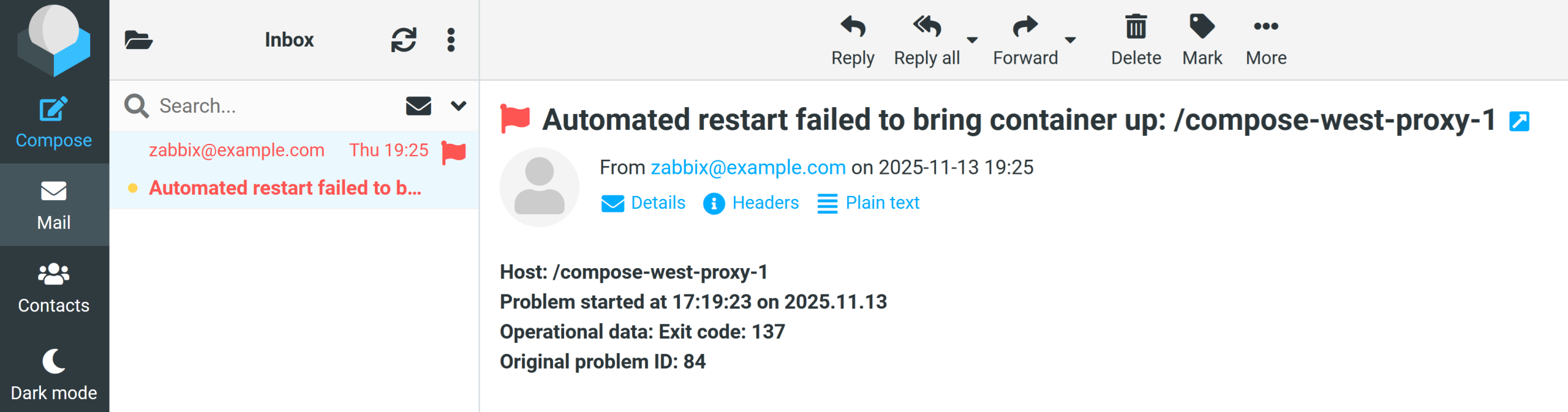
▪ Subject: Automated restart failed to bring container up: {HOST.NAME}
▪ Message: <b>Host: {HOST.NAME}<br>
           <b>Problem started at {EVENT.TIME} on {EVENT.DATE}<br>
           <b>Operational data: {EVENT.OPDATA}<br>
           <b>Original problem ID: {EVENT.ID}<br>
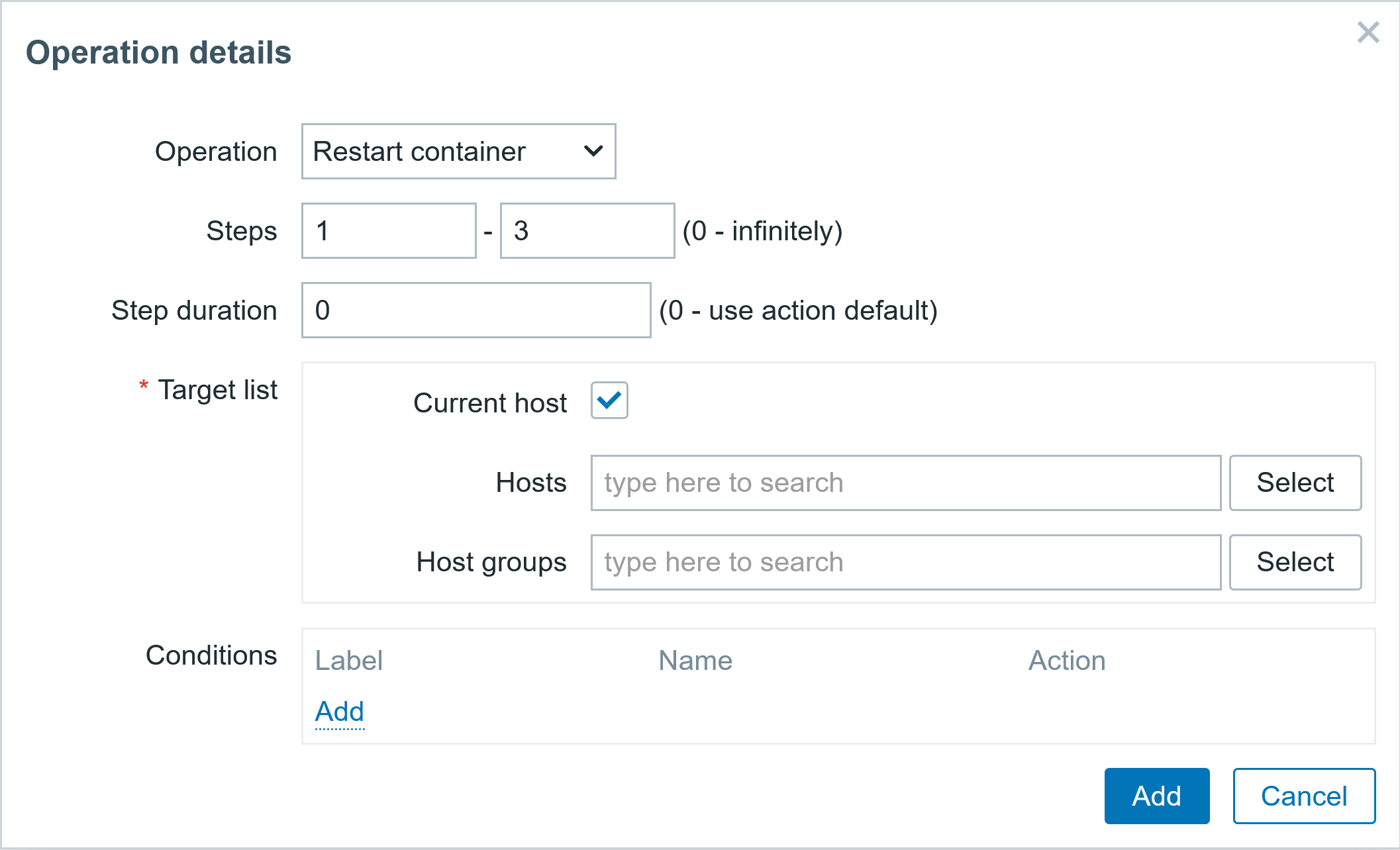
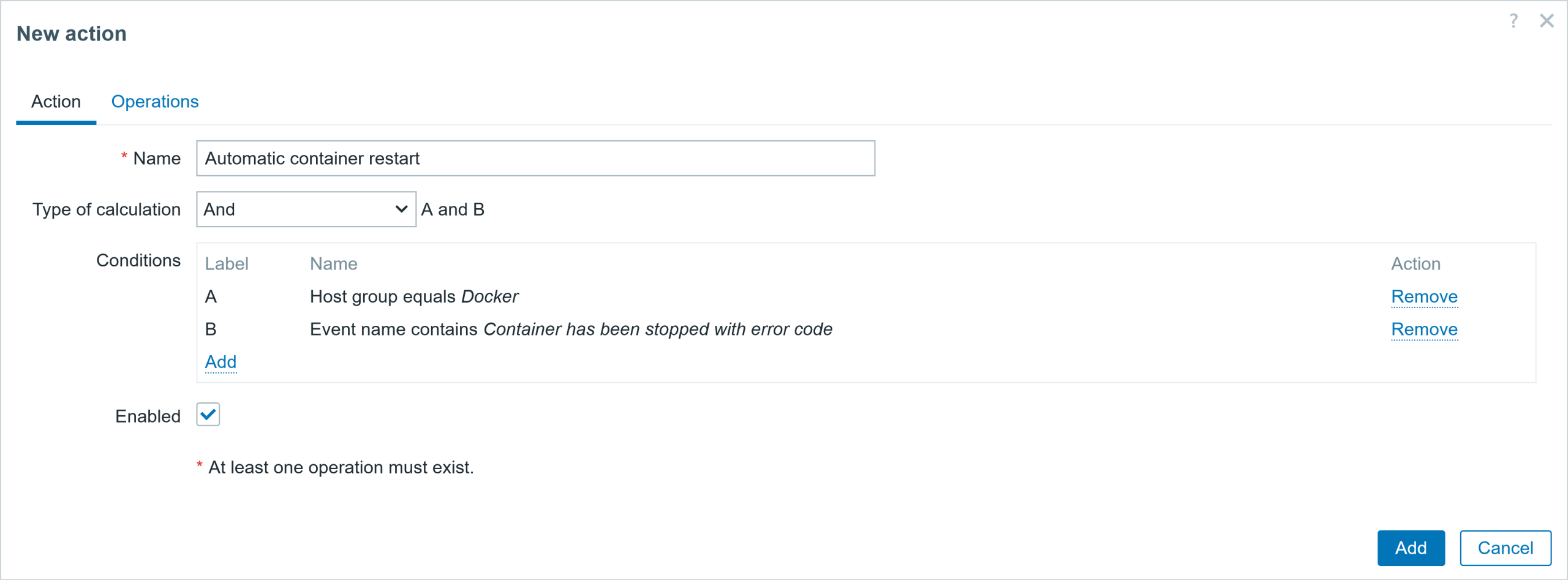
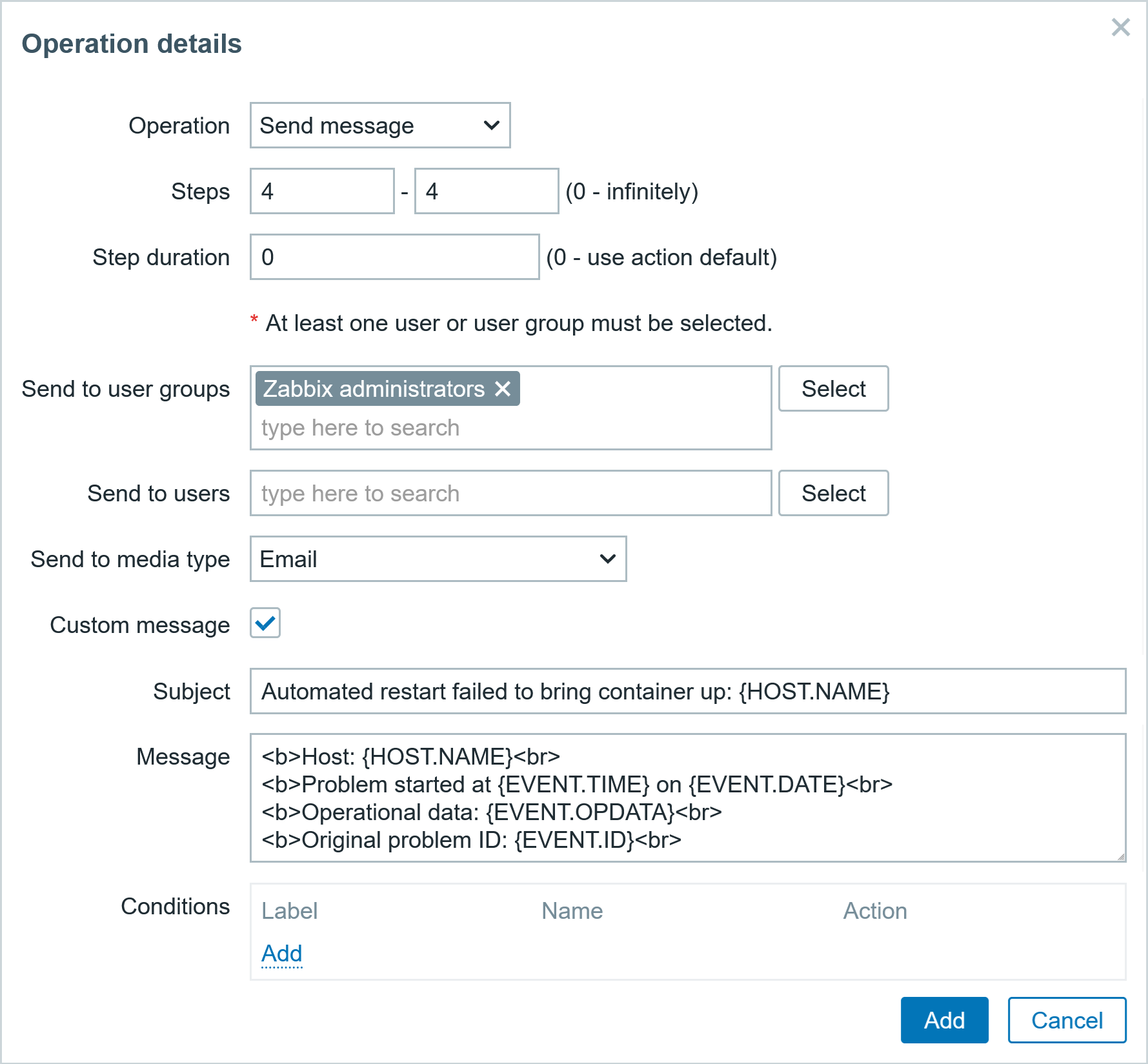
The action should look like the screenshot below. Save it.
Testing container crash automatic recovery
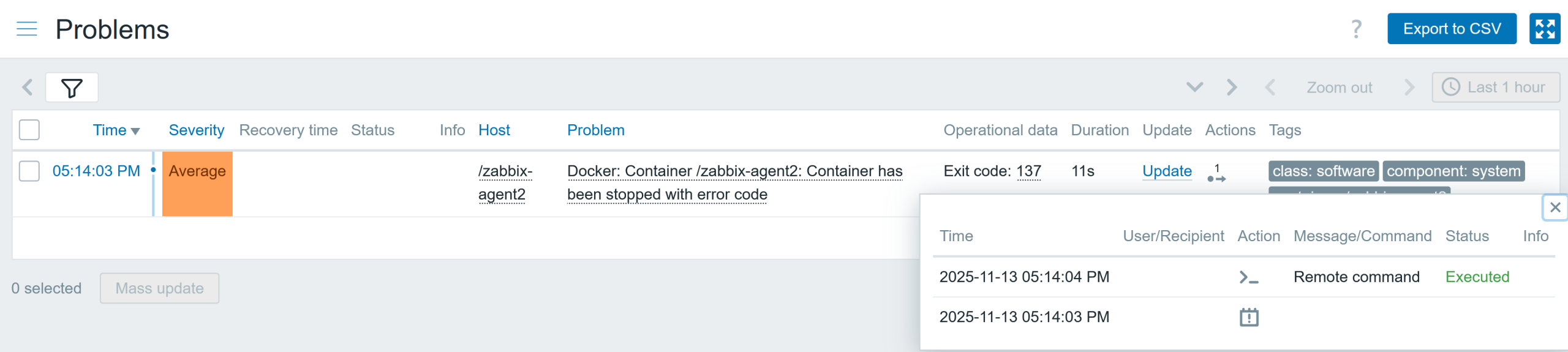
I will stop the container with the command docker kill zabbix-agent2. The container has been stopped with an exit code different from 0, so when the item receives the data (in my case, after 1 minute) I get a problem event. The trigger action executes the script Container restart immediately, after 2 minutes, and after 4 minutes if the problem event has not been resolved.
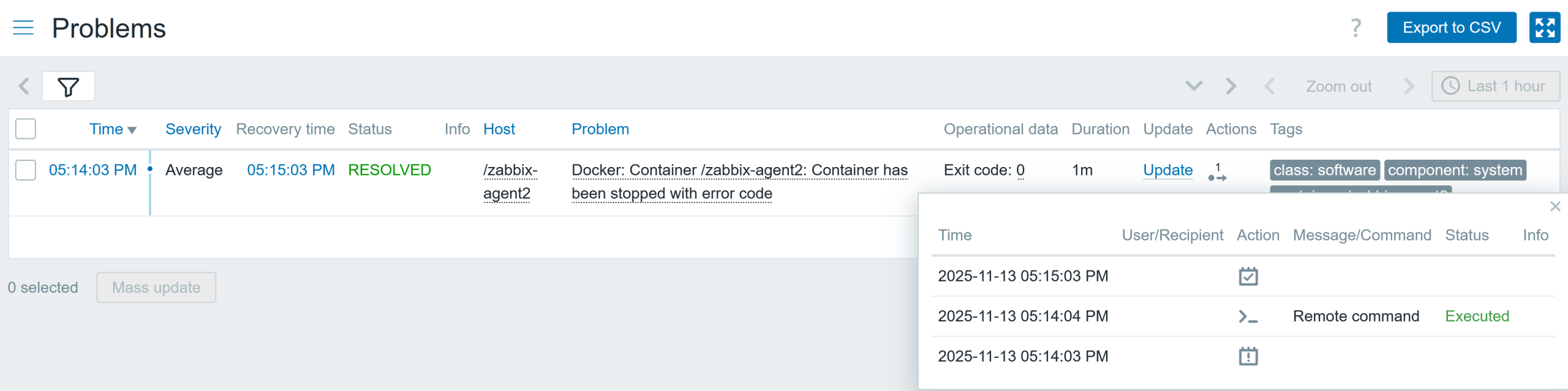
This script successfully restarted the container. The container is running again, and the problem event is resolved.
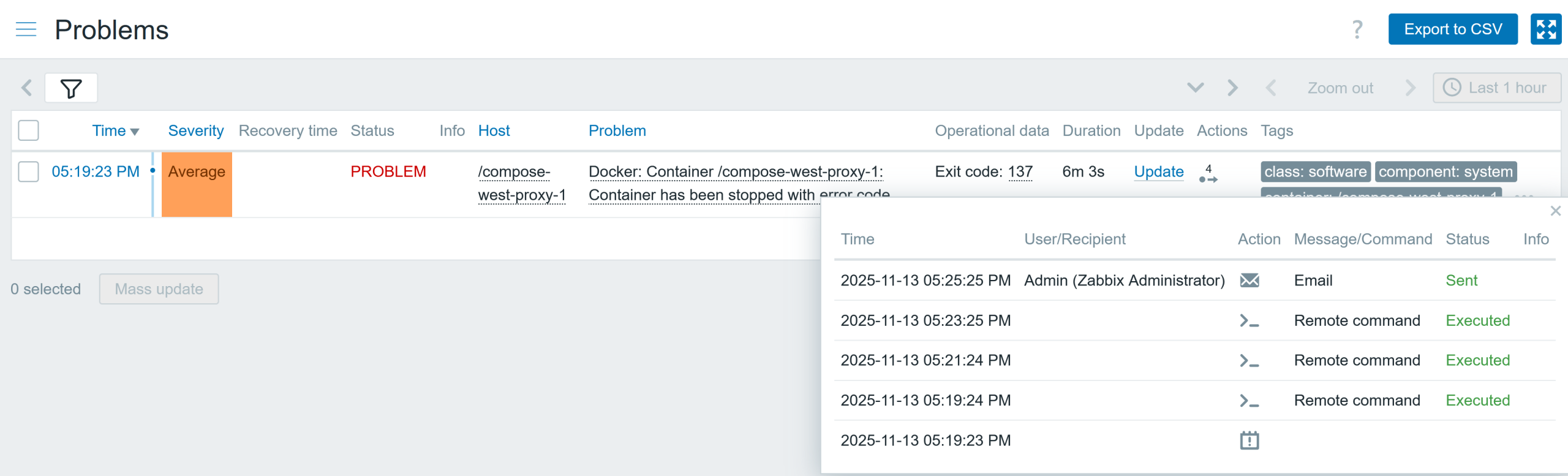
Let’s see if I am quick enough to kill the west proxy container repeatedly, before the item collects the data with the container running state. Well, I managed to be faster, so now you will see what happens when it “fails” to bring the container back to running state. Here in the Actions, we can see that Zabbix executed the script three times (I also stopped the container 3 times fast enough!) after which the action sent a notification to the admin about a failure to bring the container up with restarts.
I have received the message that the container restart was unable to bring the container to a running state and requires human interaction to fix this.
Summary
Now you know how to plan ahead and make use of the built-in capabilities of Zabbix to solve the issue without human intervention (where possible) and only get notifications when the automatic remediation attempt fails.

 Prev Post